Before you can track a single ranking, Servicehub247 needs to know which website you're tracking. That's what a Project is for. This walkthrough takes you through creating your first project the right way - so you don't have to delete and redo it later.
1. Understand the Project → Keyword model
Every keyword on Servicehub247 must belong to a project. The project is the unit Servicehub247 uses to:
- Roll up KPIs separately for each website, client, or product line
- Enforce your plan's website_limit (each unique domain across all projects counts)
- Scope exports - a single project export per client
Simple rule: one domain = one project. If you manage multiple brands, give each brand its own project. Mixing them breaks every KPI.
2. Create the project
- From the Dashboard, click + Project in the top-right.
- Give it a clear name - prefer the domain (shophoa.vn) over an internal name ("Client A"). Once your project list grows past three, the domain is the only thing you'll recognize at a glance.
- Click Add Project. The project is created instantly; no keywords yet.
3. Add the first keywords - three fields per keyword
Inside the new project, click Add Keywords. Each keyword needs three things:
URL (target URL)
The URL you want ranking for this keyword. The tracker uses it as reference, but the actual ranking URL may differ - Google might pick another page on your domain. Prefer a specific URL over your homepage.
Keyword
The exact phrase you want to track. Avoid abbreviations and special characters. Casing rarely matters, but spelling does.
Region
Two-letter country code - us for USA, au for Australia, vn for Vietnam. This determines whose Google returns results - and the difference can be 10–30 positions for the same query. If your customers are in the US but you track vn, your data is meaningless.
4. Cross-check against your plan limits
Before bulk-loading, look at Plan Usage in the sidebar:
- Keyword limit - total keywords that get crawled regularly. Once over the limit, the system stores extras but pauses crawl on them until you remove some or upgrade.
- Website limit - unique domains across all your projects. Some plans are unlimited; others cap at 1 or 3.
- Update frequency - how often each keyword gets recrawled: daily (24h), weekly (7 days), monthly (30 days). Higher plans give fresher data.
5. After adding - how long until data shows up?
New keywords go into a crawl queue. The queue runs every 5 minutes in batches of up to 500. For most accounts, first data appears within 5–30 minutes. Accounts adding hundreds of fresh keywords at once may wait longer.
Don't conclude "broken" inside the first hour. Refresh after 60 minutes; if still empty, double-check the URL/Region fields - typos there are the #1 cause.
6. Naming and sorting projects
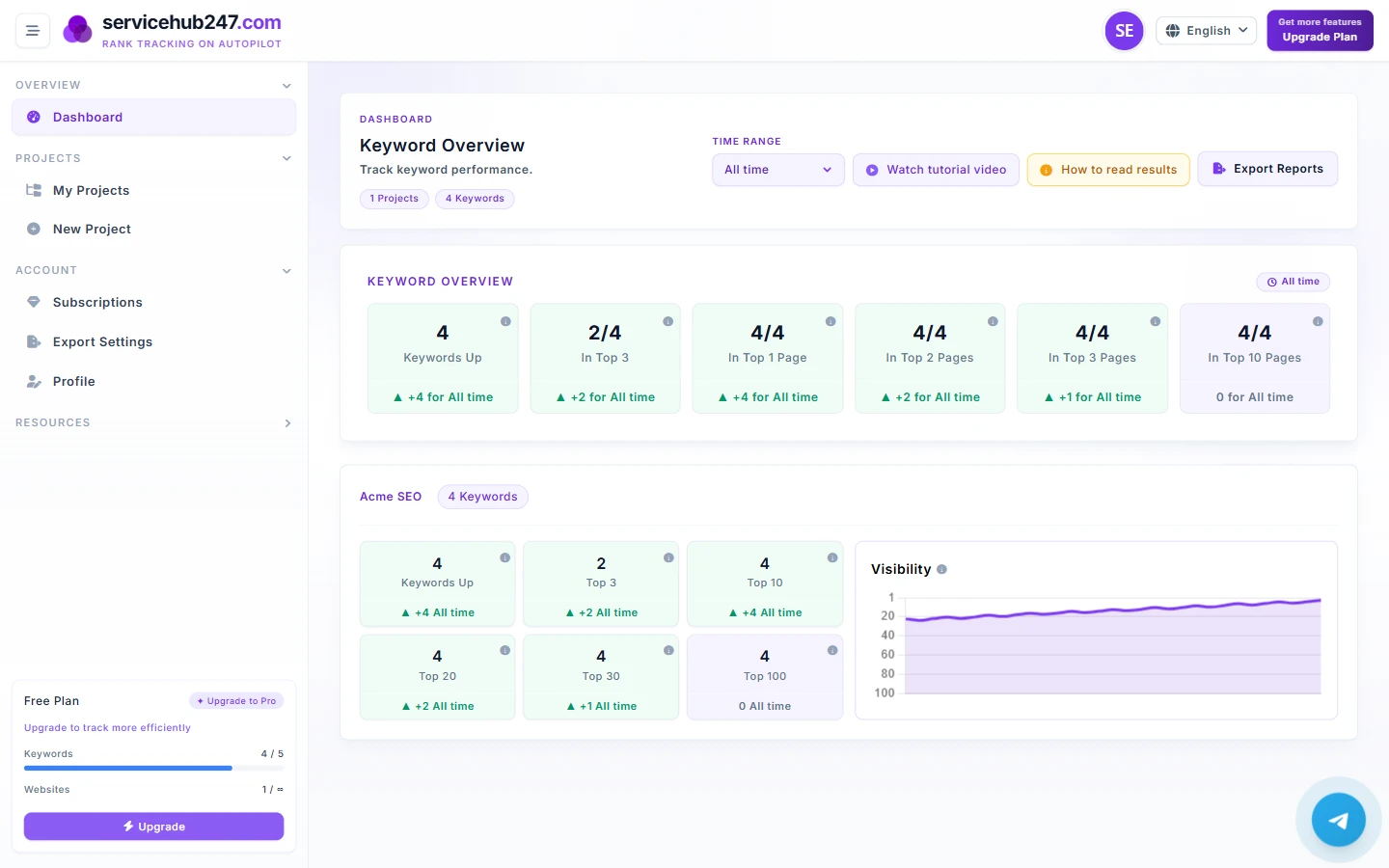
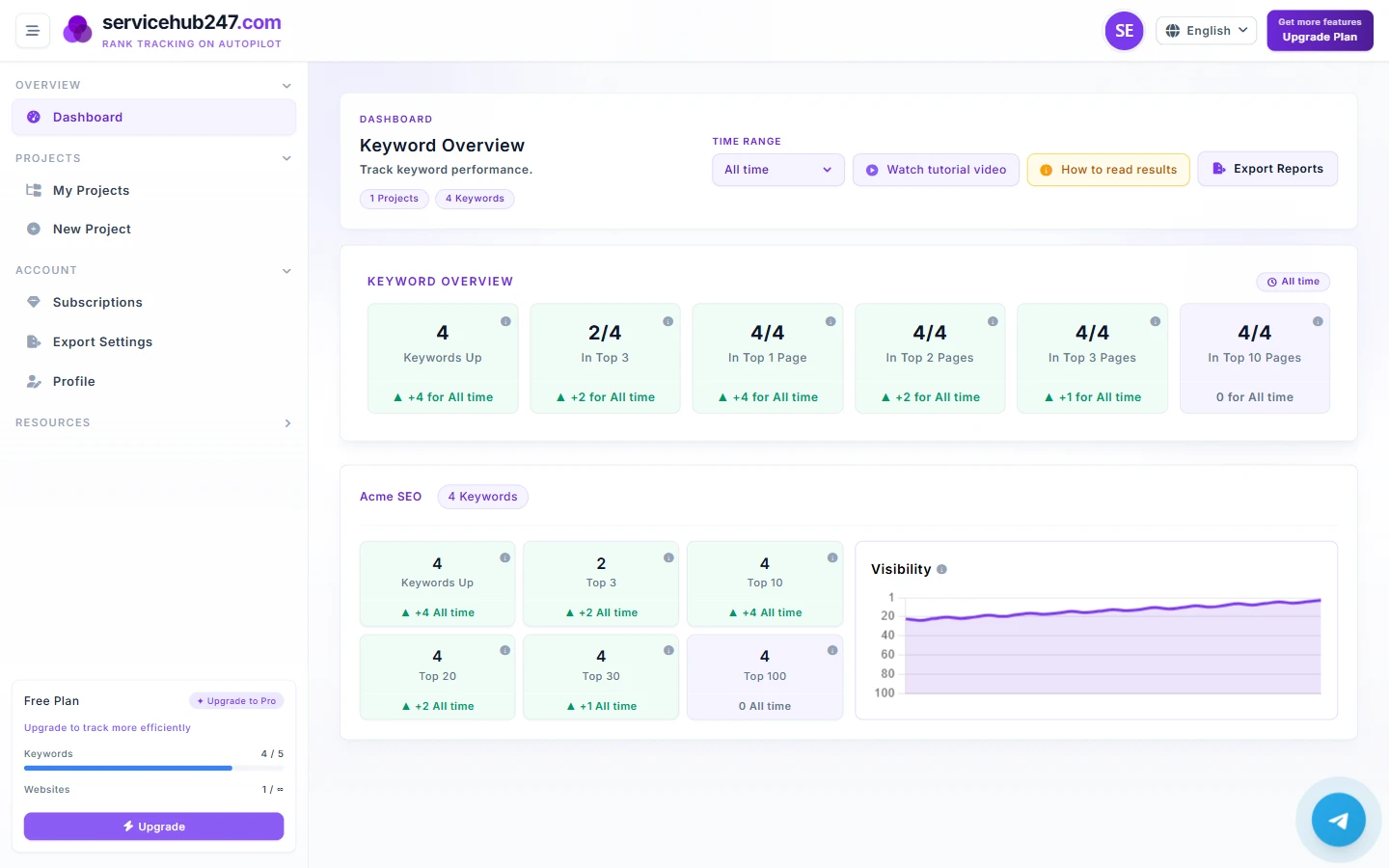
Once you have 3+ projects, drag-and-drop to put high-priority projects on top. The Overview KPIs in the header pull from all projects regardless of order, so position doesn't change the totals - but it does change how fast you can read the page.
Common first-project mistakes
- Vague names like "Website 1" → six months later, no idea what it is. Use the domain.
- Mixing domains in one project → distorted KPIs, no clean client-specific exports.
- Leaving region blank → tracker defaults to vn. If the client is American, that's silent data corruption.
- Bulk-importing thousands of keywords right away → overflow the keyword limit, surplus gets paused, KPI never reflects the full portfolio.